

With the advancement of technology, the application of Artificial Intelligence (AI) has become accessible. Recently, the popular AI chatbot ChatGPT has once again shown the world that AI technology has reached new heights, and many of our usual work patterns have begun to change. I've compiled a list of the top three productivity tools that utilize AI technology to increase your efficiency in researching cryptocurrencies, working, and reading!
How to watch a 10-minute movie in 60 seconds.
[Youtube Summary with ChatGPT]
YouTube Summary with ChatGPT ChatGPT is a Google Chrome extension that organizes the content of a YouTube video into a complete verbatim transcript, allowing users to quickly grasp the details of each paragraph of the video.
YouTube Summary with ChatGPT is available in Chrome and Safari versions, and Chrome's extensions can be installed in Microsoft Edge browser as well.
You may ask: can't you do the same thing by manually copying YouTube subtitles and pasting them into ChatGPT? With the extension, users can complete these operations with a single action, and can also customize Prompt for Summary (Customize Prompt for Summary), such as bringing in a variety of commands to operate ChatGPT, and support for video subtitles in a variety of languages, it occurred to me that ChatGPT can also help us organize Internet articles or news, so that we can absorb more content in less time, or to make sure that the content from the summary is what you want to see before spending time reading. We can absorb more content in a shorter period of time, or check whether we want to read the content from the summary first before we spend time reading it.
Teaching
- Open the YouTube Summary with ChatGPT extension page and click the upper right corner."Add to ChromeDownload, install to your browser.
- It will appear in the upper right corner of the YouTube video"Transcript & Summary"button, click it to open the subtitles.
- In addition to selecting the language, clicking on the corresponding time link will jump the movie directly to the passage.
- If some videos do not have subtitles, YouTube will automatically generate English subtitles, then click on the upper right corner."View AI Summary"Drop the content into ChatGPT to generate a summary, where different subtitle languages can be selected, although English is recommended for faster results.
- YouTube Summary with ChatGPT will follow the format of the customized summary prompts to generate a summary of the video title, subtitles thrown to ChatGPT, the default use of the command is "Summarize the following", ChatGPT will be the content of the video to generate a summary, you can also add a command such as the use of Chinese as the summary of the You can also add commands such as using Chinese as the summary language, etc.
- Then you can convert the outline into Chinese by using DeepL or Google Translate to get a general idea of the movie!
YouTube Summary with ChatGPT The three advantages:
- Quickly get a summary of the video, saving time and improving the efficiency of watching YouTube content.
- Paste subtitles onto ChatGPT in one action, with customizable summary cues and language.
- There are no additional fees, the only thing you need to do is register and log in to the ChatGPT service and you're ready to go!
For those who are used to learning through videos, this feature is a boon. The developers will be releasing new versions in the future to fix problems and add new features, so this ChatGPT extension may become even more extensive, and I still recommend you to use it!
Over 100 pages of report highlights in 60 seconds.
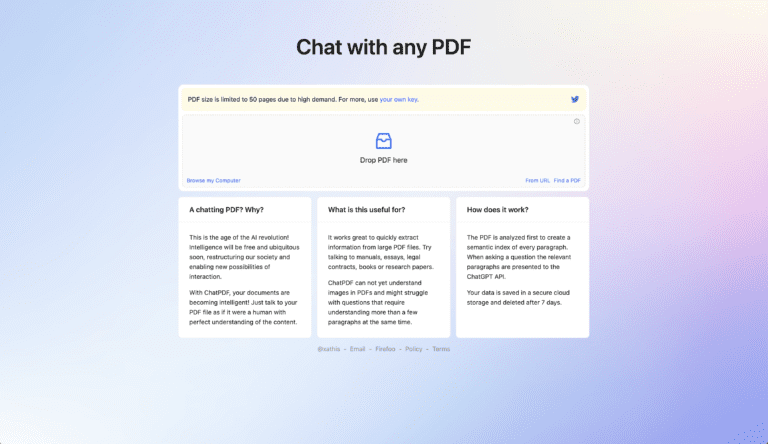
[ChatPDF]
ChatPDF In the cryptocurrency community, there are often large organizations and venture capital firms releasing documents, and many times they include investment portfolios. For people in the cryptocurrency community, it's really convenient to let AI help analyze the key points of the reports!
Today's introduction of [ChatPDF] is also one of the applications based on ChatGPT. You can upload any PDF file, he will analyze the content of the PDF, and generate an online chat room, you can ask him in the dialog box, he can be based on PDF content to answer.
As ChatGPT's information is currently only current as of 2021, and there is no internet connection. Therefore, he can't analyze and answer based on the content of the web pages you provide. With ChatPDF, a tool that links to the ChatGPT API, you can upload a DPF file, which gives ChatGPT the ability to get access to the information, greatly enhancing the application of ChatGPT.
In the free version, it only supports up to 120 pages of PDF, if you want to get unlimited upload size, you can input your own ChatGPT API, so you can upload PDF files of any size. Here is a free way to crack the 120-page limit, you can use PDF tools to split the overland PDF file.
Teaching
- After entering ChatPDF, you can upload PDF files to the website by dragging and dropping or clicking. It is worth noting that the PDF file cannot exceed 120 pages and the file size must be less than 32 MB.
- After you upload the PDF, he will jump to a chat room window. He will summarize the PDF file and provide a list of 3 questions that you may want to know. You can ask him about the PDF directly in the input box just like you can with ChatGPT.
- If you upload a PDF file content is another language, he in the welcome introduction content, according to your PDF file language to correspond to the display. For example, if your PDF file is in English, he will start the introduction in English. That said, you can still ask him questions in a language you're familiar with, just as you can with ChatGPT, and once you've asked him to answer in a specific language, he'll respond to you in the language you've requested.
Don't worry, basically 32MB is enough for us, at least we don't need to use a lot of time to read the file, this function directly helps us to catch the key points, and we can also ask it further questions, so as to solve the content of the content of the mountain of encrypted currencies!
Three advantages of ChatPDF:
- Free PDF file upload for ChatGPT to learn specific content without registration
- Supports local uploading and online PDF file uploading.
- Supports ChatGPT API for unlimited uploading of large-capacity PDF files.
Translations that are more accurate than Google

[DeepL]
DeepL Use AI to analyze and correct translation results for more accurate and natural language. Why is DeepL better than Google Translate? Without further ado, let's take a look below!
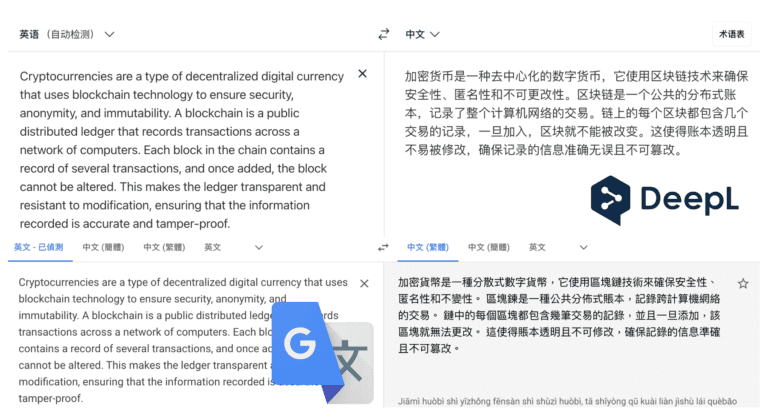
DeepL can be translated more accurately and humanely in more phrases when translated from English to Chinese:
For example, when we say "on-chain", Google says "in-chain"; when we say "decentralized", Google says "decentralized". Basically, the translation of DeepL is more in line with what we want, although it only supports English translation into simplified Chinese, but I also move the simplified Chinese to Google and replace it with traditional Chinese!
In the past, DeepL mainly focuses on European language translations, such as English, German, French, Spanish, Portuguese, Italian, Dutch, Polish, Russian and so on. Although the number of languages translated is much smaller than that of Google and Bing, the service is provided with the strategy of small quantity and high quality. The service is even praised by many company names, who believe that as long as minor mistakes such as subject and honorific are corrected, the translation can be taken as a perfect one.
DeepL Tips for using translation tools
DeepL can directly copy text and translate English to Chinese and Chinese to English through its online version. The free version is limited to translating 5,000 characters at a time. ItIt is also smart enough to automatically recognize when the original text is in English, and then turn it into Chinese. If the original text is in Chinese, it will be translated into English.
DeepL There are two little details that come in handy:
- When you click on a paragraph of the translation result on the right, the original paragraph on the left will be blacked out for easy comparison.
- Click on a word in the translation result on the right side to replace it with a variety of translation choices. However, this function is only available for Chinese to English translation, not for English to Chinese.