


Do you want to enter the Solana ecosystem but don't know which wallet to use? Or maybe you're used to using MetaMask cryptocurrency wallets, but you can't buy NFTs from Solana? Don't worry, today's decentralized wallet tutorial article will introduce you to Phantom wallets.
Phantom is one of the most popular hot wallets on Solana chain nowadays. It is not only easy to operate, but also has complete functions, so it is very suitable for newbies who are new to Solana ecosystem. In the following, we will introduce the features of Phantom wallet, installation, basic operation and security, so that you can become a veteran of the Solana world step by step!
What is Phantom Wallet? Why is it so popular?
Phantom is a non-hostedDecentralized Cryptocurrency WalletInitially, it was specifically designed for Solana BlockchainDesign. The so-called non-custodial means that the private key and auxiliary word of the wallet are completely kept by the user, and the control of the assets is in your hands, not through a centralized organization.
Launched in 2021, Phantom has quickly become one of the most popular wallets in the Solana ecosystem because it offers a secure, autonomous, and newbie-friendly experience. Many have called it "the little fox on the Solana chain" (comparing it to Solana as MetaMask is to Ether).
So what's the appeal of the Phantom purse? It allows you toEasily store and manage SOL and various SPL tokens(the token standard on Solana), as well as support for receiving and sending tokens directly, browsing and favoriting Solana NFTs, and connecting to decentralized applications (DApps) to participate in DeFi, GameFi, and more.
This means that Phantom is a one-stop shop for asset management and blockchain application interaction on the Solana chain. The user interface is simple and intuitive, so even novice users can get started quickly. At the same time, Phantom provides comprehensive security mechanisms, such as backup prompts for auxiliary words and biometric locking of apps, etc., to protect the safety of users' assets. Precisely becauselow threshold但High autonomyPhantom is almost a must-have tool to enter the Solana world.
It's worth mentioning that Phantom wallet has a cute name "Ghost / Ghost wallet" in the online community. So don't be surprised, if you see someone talking about Ghost / Ghost Wallet, they are actually referring to Phantom! Now that we know what Phantom is and why it's so popular, let's take a look at what blockchains and tokens Phantom supports and how to download and install it!
What blockchains and currencies does Phantom support?
- Solana (SOL): Solana's native token SOL and all SPL tokens on Solana (e.g. USDC, USDT, etc.)
- Ethereum (ETH): Ether and its ERC-20 tokens (e.g., ETH, ERC-20 USDT/USDC, token stocks, etc.)
- Polygon (MATIC): Polygon network and tokens (Phantom has expanded support for Polygon in 2023)
- Base: Coinbase's second-tier Ethernet network, Base.
- Sui (SUI): The Emerging Public Chain Sui and its Tokens
- Bitcoin (BTC): Bitcoin Network (Phantom can also manage native Bitcoin assets, via Taproot technology)
- Others: In addition, a number of test sites or new links (e.g., Monad test site, etc.) are supported and are constantly being added.
It's worth noting that the current Phantom Not yet directly supporting BSC (BNB Smart Chain)If you need to manage assets on BSC, you may need to use another wallet such as OKX Wallet. If you need to manage assets on the BSC, you may need to use other wallets such as OKX wallets.
However, given Phantom's aggressive expansion trend, we can't rule out the possibility of adding support for more chains in the future. Phantom's asset integration is quite good. You can view tokens and NFTs for each of these chains in the same wallet app, without having to manually switch networks each time.
For example, the Phantom interface automatically categorizes Solana assets and Ethereum assets, so you can see at a glance your balance and collections on different chains. This is very convenient for those who are new to using multiple chains, so you no longer have to install multiple wallets or worry about finding your assets scattered all over the place!
How to download and install Phantom Wallet?
Currently, Phantom is available in both a PC Browser Extension and a Mobile App to fulfill different usage habits.Phantom Browser Extension supports Chrome, Firefox, Brave, Edge and other major browsers. The installation steps are as follows:
- Download Extension Kit: Go to the official Phantom Wallet download page (remember: always download from official sources to avoid phishing or counterfeit plugins!) Choose Chrome, Firefox, etc. on the download page. On the download page, select the button for Chrome, Firefox, etc. and follow the instructions to install the extension.
- Fixed Expansion Icon: After installation, a small ghostly Phantom icon will appear in the top right of your browser. For future use, you can click on your browser's extensions puzzle icon, find Phantom, and click Pin to pin it to the toolbar. That way, you'll be able to quickly find the Phantom icon every time you want to open it.
Courtesy of Phantom iOS 與 Android (operating system) You can download Phantom App from the official website or search Phantom in App Store/Google Play to install it. It is recommended to jump to the official website to avoid downloading fake apps. After installation, you can open the Phantom app to start wallet setup.
Reminder: When you open Phantom App for the first time, if the interface language is in English or Simplified Chinese, don't worry, you can switch to Traditional Chinese in the Language/Language option in the Settings! You can switch to Traditional Chinese in the Language/Language option in the Settings, Phantom fully supports Traditional Chinese, which makes it more convenient for users in Hong Kong and Taiwan.
Now you have successfully installed Phantom Wallet! Let's create your wallet account and take a quick look at the Phantom interface!
How to build a Phantom wallet
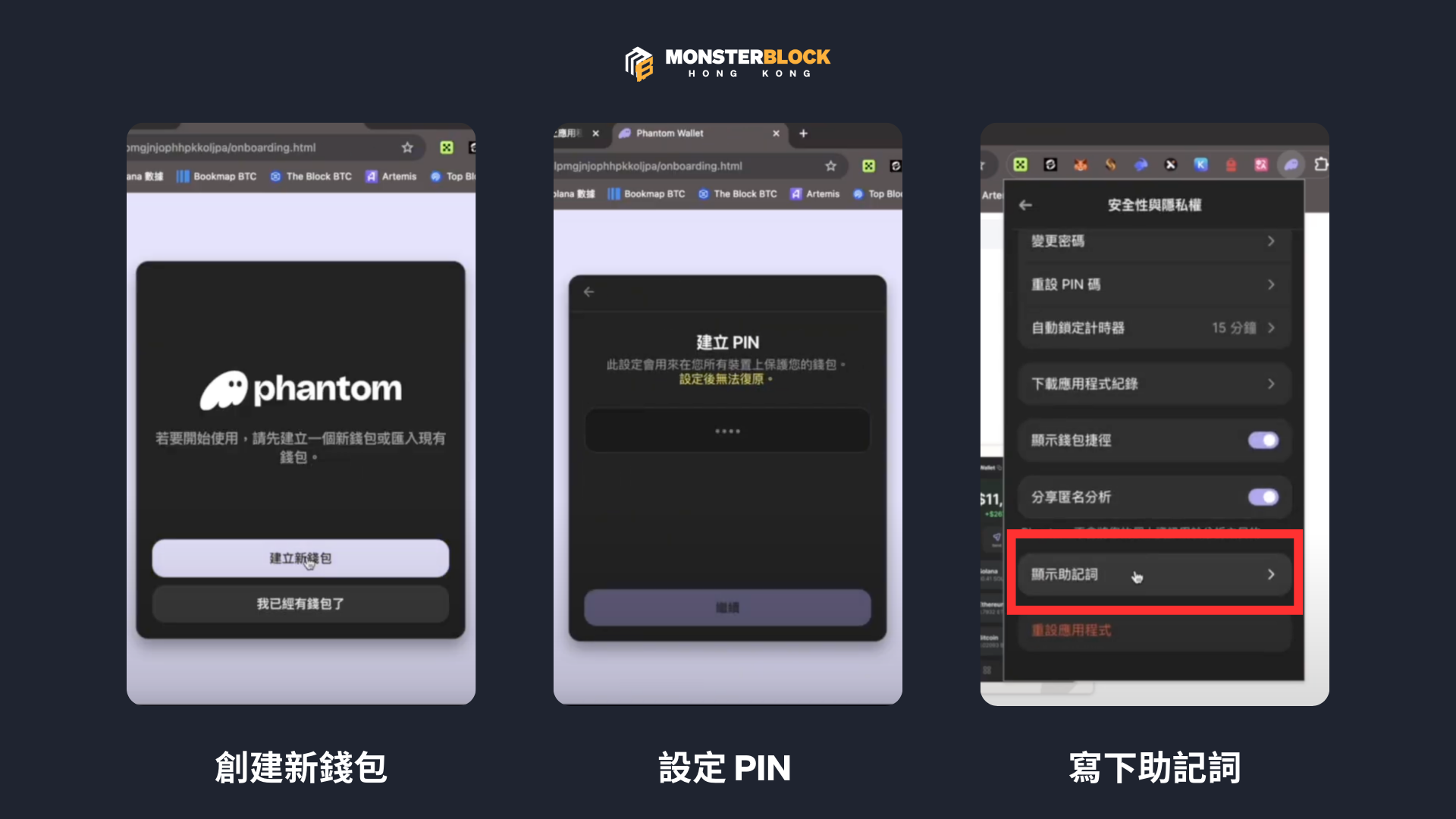
- With your Phantom open, click "Create New Wallet". If you already have a Phantom wallet aid from another device, you can also select "Use aid to restore wallet" to import directly to your old account. This tutorial assumes that you are a new user, so you should create a new wallet first.
- Follow the instructions to set a wallet password (Desktop Extension) or PIN number (Mobile). This is the local password that you will need to enter to open your wallet or perform important operations in the future. Choose a password that is not easy to guess but that you remember. Note that Phantom cannot reset the PIN for you, so if you forget it, you can only reconstruct your wallet with a mnemonic.
- The system then displays a randomized set of words (usually 12 or 24 English words).If you are using the PC version, you will open your wallet directly after completing the second step, just go to "Security & Privacy" in the settings to find the auxiliary word and copy it down.This is the master key to your wallet. This is the master key to your wallet, so be sure to back it up offline! It is recommended that you write it down on paper and store it in a safe place. Do not take screenshots, photos or store them in the cloud to avoid the risk of being hacked. Anyone who has access to this set of auxiliary words will have control of your wallet, so be sure to keep it a secret!
- After setting the password, the wallet is created! Phantom may prompt you to enable a biometric lock (such as fingerprints or Face ID), which is recommended for added security. You should now be able to see the main wallet interface, listing your account address and assets.
How do I receive coins and transfer funds at Phantom?
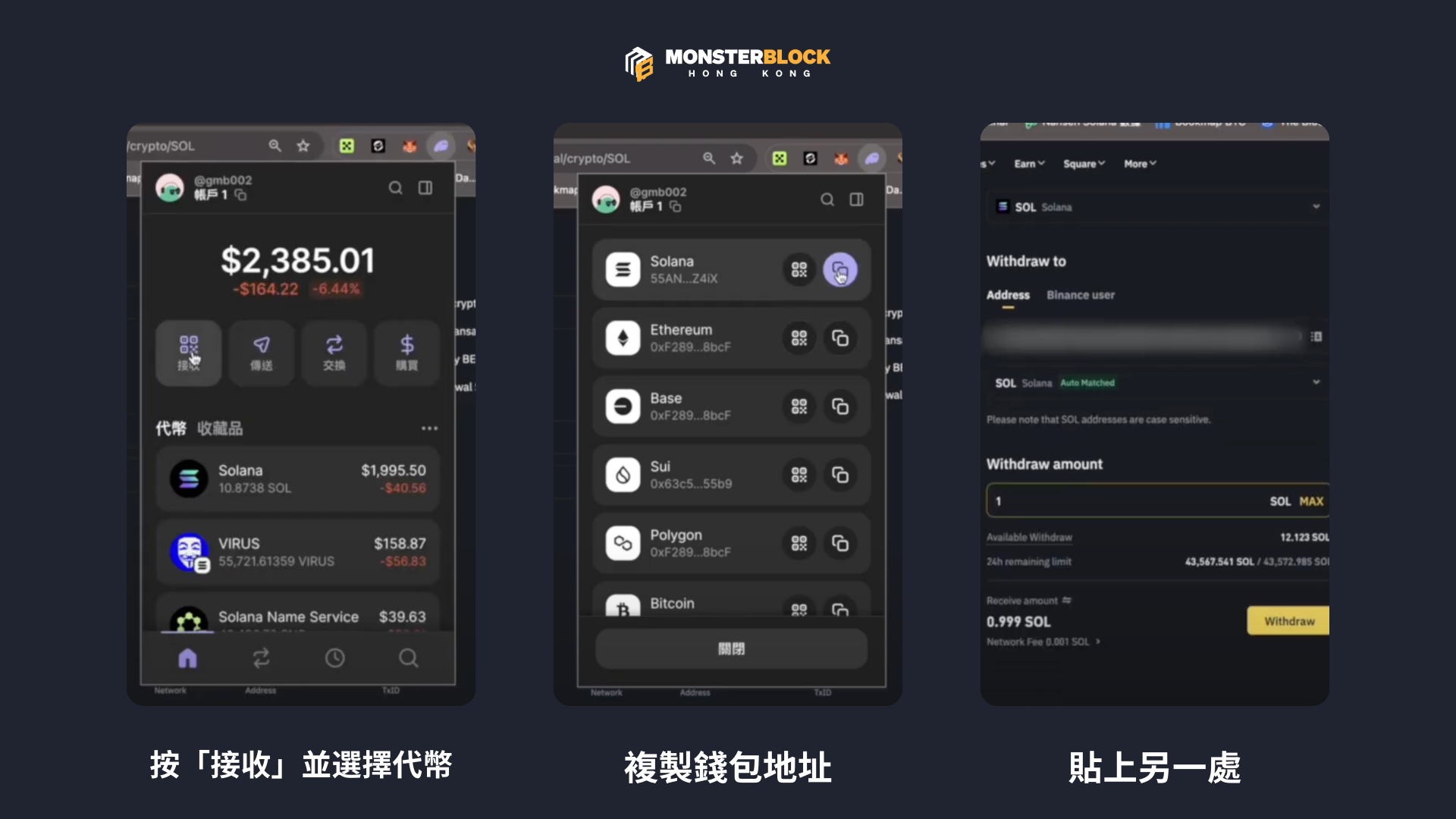
Once your wallet is ready, the first step is usually to deposit cryptocurrencies into your Phantom wallet, after which you may also need to withdraw funds or transfer money between friends. Let's take a look at the basic steps of sending and receiving cryptocurrency on Phantom:
Whether you are withdrawing coins from an exchange or receiving money, you will need to provide your Phantom wallet address to the other party. Remember that each chain has a different address, so be sure to use the correct chain address to receive payments!
- How do I get my wallet address? Open the Phantom and click the Receive button. Then select the token or chain you want to receive. For example, if you want to receive SOL, just select SOL; if you want to receive USDC, select USDC. Phantom will display the corresponding wallet address and a QR code. This address is like your bank account number, and is used to allow people to send money to you.
- The Phantom interface will usually indicate which blockchain the address belongs to. For example, if you choose Solana's USDC, the interface will remind you to "Please use Solana network transfer". This step is important: the sender must use the same chain to transfer the funds, otherwise the assets will be lost.
- Post the address you just copied to the exchange pickup interface or share it with someone who will pay you. Choose the right chain (Solana, Ethereum, etc.) and initiate the transfer. Wait for the blockchain to confirm the transfer, which is usually done in a few seconds to minutes (depending on the chain; Solana is very fast, within seconds).
- Open Phantom to see the balance change, or confirm the transaction in Recent Activity. Sometimes Phantom will send you a notification that the deposit was successful.
For example, if your Phantom shows a Solana address (a string of characters starting with a 5 or a D), you can only transfer coins from the Solana network to this address; do not use the Taflatron network to transfer USDC to this address, as the money may be sent to an unrelated location!
A little reminder: A common problem for newbies is that they can't see their wallets even though they've transferred their coins. If you encounter this situation, please check whether you have transferred the wrong link. For example, if you transferred ETH to Phantom through BSC network by mistake (Phantom doesn't support BSC), then the assets actually didn't enter Phantom, so it can be called "lost". In addition, if you are sure that the network is correct but you still can't see the tokens, it may be that Phantom hasn't displayed the tokens yet, so you can manually add a new contract address for tokens to check it!
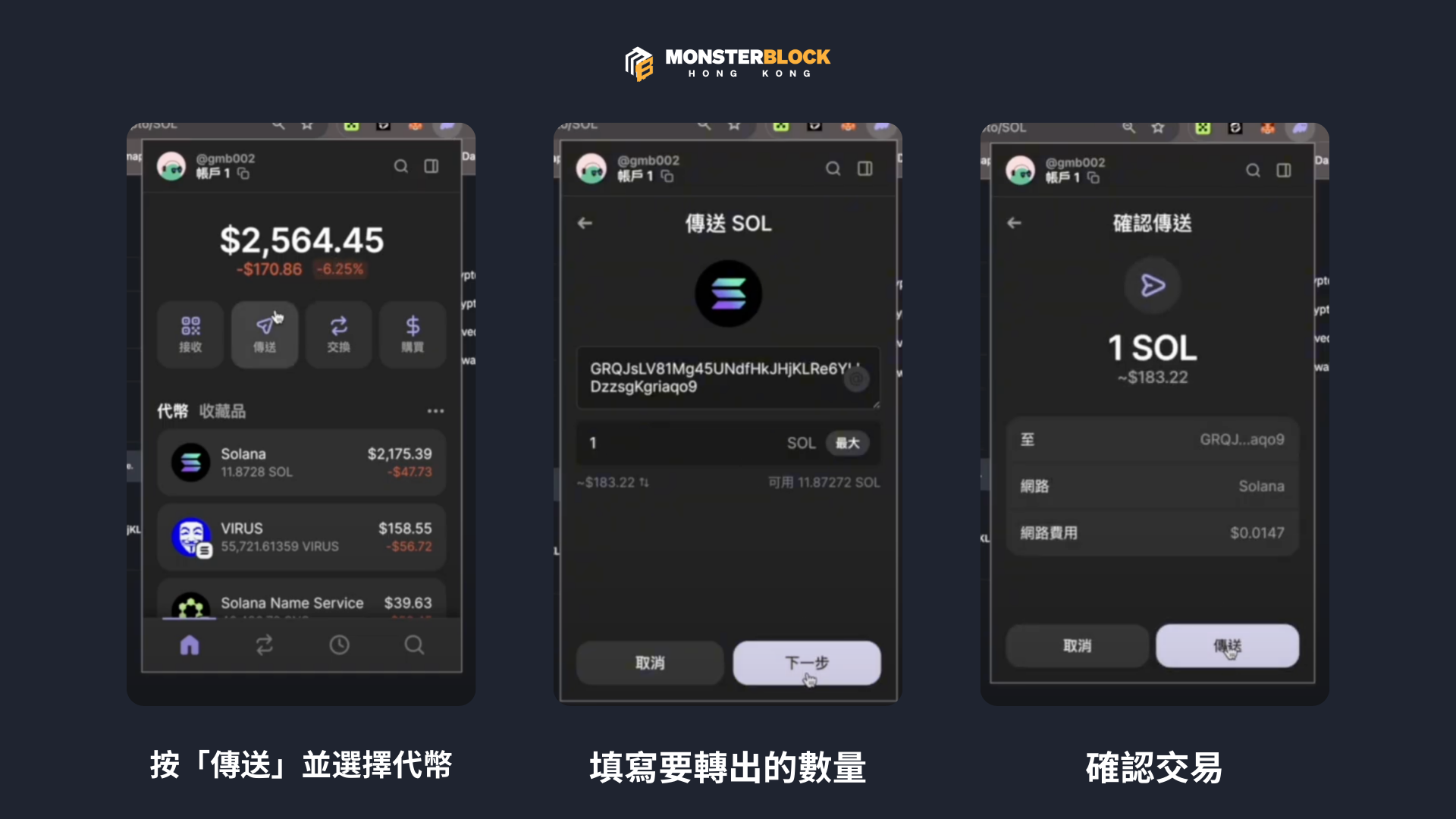
Phantom is also very easy to send encrypted currencies with the following steps:
- Click "Send" in Phantom, select the asset type you want to send, and enter the wallet address of the other party. It is recommended to copy and paste and check the codes to make sure the address is correct.
- Fill in the amount of money you want to transfer, Phantom will usually show you the current balance and available credit, as well as give you an estimate of how much the gas fee will be. For example, a transfer on the Solana network may cost less than 0.001 SOL, which is very inexpensive, while a transfer on Ether may cost more depending on the current price of gas.
- Confirm Transaction: After clicking Confirm, Phantom will pop up a confirmation window listing the details of the transfer (payee address, amount, handling fee, etc.). After double-checking, enter your wallet password/PIN to approve the transaction.
- Once the transfer is submitted, wait for the blockchain to pack it up - transfers on Solana are done almost instantly, whereas on Ether it can take a few minutes. Once it's done, the other party receives your payment and your own wallet balance is reduced accordingly.
After completing the above steps, you have learned how to send and receive cryptocurrency in Phantom! As long as you don't choose the wrong network, it's easy for newbies to handle.
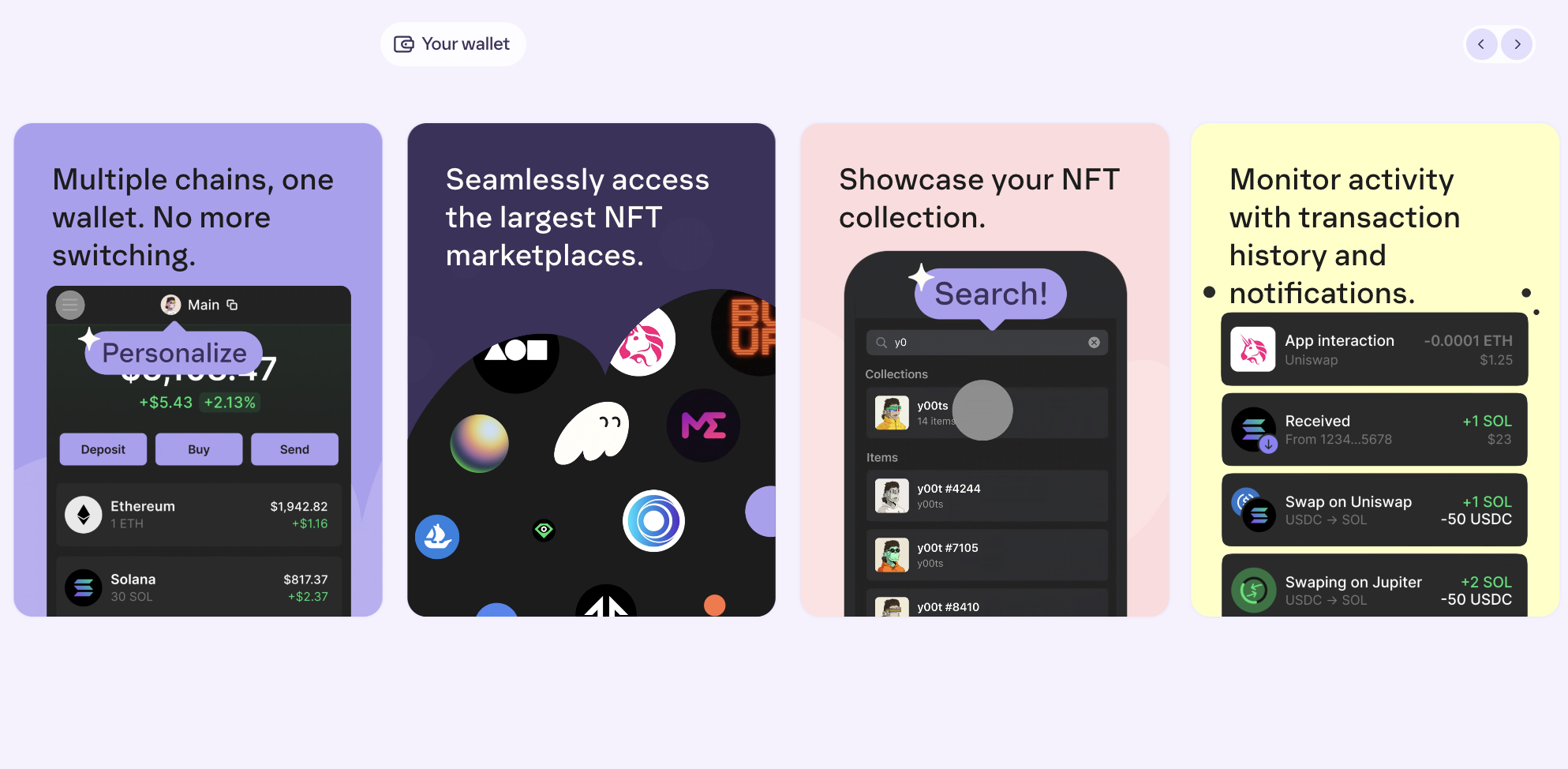
Phantom Wallet Interface
With wallet creation complete, let's take a quick look at the Phantom interface. When you open Phantom, you will see the following sections:
Asset OverviewPhantom displays a list of your crypto asset balances at the top of the screen, including the various tokens and their values. Phantom will display tokens from different chains in different categories, such as SOL, ETH assets in separate columns, or small icons to indicate the networks they belong to, so that you can clearly identify them.
Switching tokens/collectiblesOn the Assets page, you can usually toggle the view to see tokens or NFTs in your collection. For example, the Phantom mobile version has a "Tokens | Collectibles" toggle button at the top of the page, so click on "Collectibles" to see your NFT holdings, and the Phantom's built-in NFT showcase automatically categorizes the NFTs in your wallet by series and displays them in thumbnails, which is very intuitive and easy to use.
Main Function Buttons: The Phantom interface provides several buttons for frequently used operations, such as "Receive", "Transfer", "Exchange", and so on.
- Receive (Deposit): Click the "Receive" or "Deposit" button to select the cryptocurrency you want to receive. The system will display the corresponding wallet address and QR code, which can be used to allow others to transfer money to you.
- Transfer (Send): Click the "Transfer" or "Send" button and enter the address and amount of the other party's wallet to send the assets.
- Swap: Phantom has a built-in token swap feature that allows you to exchange one token for another (e.g. SOL for USDC) directly in your wallet. This is very convenient for newbies, as you don't need to go to a centralized exchange to do it. However, there is an exchange fee of about 0.85%.
Menu and Settings: In the corner of the wallet interface (usually the top-right menu icon for the add-on version, or the bottom or side menu for the mobile version), you can access the settings page. In the settings, you can manage your wallet (e.g. checking your dictionary, adding/switching accounts), language switching, network switching, security settings, and so on.
How to connect DApps to play with decentralized apps like DeFi, NFT, etc.?
Phantom is not only for depositing and transferring money, it's also your gateway to all kinds of decentralized apps (DApps). Whether you want to experience a decentralized exchange (DEX), earn interest on DeFi, or browse the NFT market, Phantom will come in handy. Here's how to connect to a DApp with Phantom and what to expect when using it:
If you're using the Phantom Browser Extension on your computer, connecting to the DApp is pretty straightforward. The steps are as follows:
- Use your browser to access the official website of the DApp you want to use. For example, DEX, which is famous on the Solana chain. Raydium, or the NFT marketplace Magic Eden, among others.
- On a DApp site there is usually a "Connect Wallet" or "Connect WalletClick on the "Phantom" button. Click on it and select Phantom as the connection option. Since the Phantom is the most common wallet in the Solana ecosystem, most Solana DApps have built-in support for the Phantom.
- At this point, your browser will pop up the Phantom Wallet window, asking if the site is allowed to connect to wallet. You can see the URL of the site you want to connect to and click "Approve" after confirming that it is correct. Do not grant permission to unknown or suspicious websites to avoid authorization to phishing websites!
- Upon successful connection, the DApp will usually display your wallet address in abbreviated form to indicate that you are logged in. After that, all your operations on the DApp (e.g. trading, pledging, buying NFTs) will be confirmed by Phantom by sending a transaction signature. Whenever a transaction is requested, Phantom will pop up a confirmation window that lists the transaction and possible changes to the funds involved for you to approve or decline.
For example, if you are exchanging tokens on Raydium, after submitting the swap, Phantom will show you a pop-up window with the details of the exchange (which tokens you are exchanging from, the amount, the fee, etc.), and you can check that it's correct, then click Confirm to have the transaction sent out.Phantom has a built-in DApp browser to make this a smooth and secure process.
You can also use the Phantom to browse Solana ecosystem applications, such as mobility mining on the DeFi platform, exploring game DApps, purchasing Solana ecosystem NFTs at Magic Eden, etc., all with a single wallet of the Phantom.
It's worth noting that Phantom now supports multiple chains, so it's not just for Solana DApps; if you switch to an Ethereum or Polygon network, you can also use Phantom to connect to DApps on the corresponding chain.
If some phone DApps or links are not built into the Phantom browser, they may be connected through protocols such as Wallet Connect. However, Solana Ecology is mostly available directly from the Phantom browser. All in all, the Phantom Mobile App makes it easy to interact with blockchain apps anytime, anywhere, no longer confined to your computer.
Switching Chain and Cross-Chain Operation Guide
As a multi-chain wallet, Phantom inevitably involves network switching or cross-chain migration. We've also put together a list of ways to manage different blockchains in Phantom, as well as some ways to cross-chain:
For the most part, you don't need to manually switch networks like MetaMask; Phantom automatically recognizes which chain you're working on and uses the corresponding address. For example, if you open the Solana DApp, Phantom defaults to the Solana chain; if you cut to the Ethereum DApp, Phantom uses the address of the Ethereum chain. However, in the wallet settings, you can manage which networks are enabled.
Enter Phantom's Settings -> Active NetworksYou will see a list of supported blockchains (Solana, Ethereum, Polygon, Base, Sui...). You can turn on or off the display of a particular chain. For example, if you don't use Sui for a while, you can turn off the Sui network, and the interface will hide the relevant assets; you can turn it on again when you need it, which can avoid interface clutter when there are a lot of assets.
If you want to see a chain address or asset manually, you can try switching the type of chain or asset in the Phantom interface. For example, if you select ETH on Ethereum when receiving money, Phantom will display your Ether address and QR code. Similarly, if you select Solana's SOL, it will show you Solana's address. It's important to understand this because each chain has a different address format:Solana's address is a long Base58 string.but (not) The Ethereum/Polygon/Base address is a hexadecimal string starting with 0x.Phantom helps you manage multiple addresses in different formats at the same time, but you need to get the right address in the right context.
So how do you do a cross-chain transfer of assets (Bridge)?
Strictly speaking, there is no direct transfer between different blockchains. If you want to move assets from one chain to another, you usually need to do so via a cross-chain bridge or centralized exchange. For example, if you want to transfer USDC from Solana to Ether, you can:
- Raise Solana USDC to an exchange (via the Solana chain) and raise ERC-20 USDC from the exchange to an Ether Phantom address. This is done across the chain via the exchange.
- Use a bridge service. Some bridges support transferring assets directly between two chains. Examples include Wormhole or Allbridge, which allow you to convert Solana USDC 1:1 to USDC on Ether (in effect, destroying Solana USDC and issuing an equal amount of Ethereum USDC). To use such services you need to connect to Phantom to sign the transactions on both sides of the chain.
Is the Phantom safe?
After all the features, security is definitely the most important part of wallet education, and while Phantom is known for its simplicity, it doesn't compromise on security, and the security of the wallet depends largely on the user's own habits.
Phantom is a non-custodial wallet and the private key is stored locally on the user's device and protected by a password/PIN encryption that you set. Each transaction requires you to enter your PIN to unlock the device or confirm it with your fingerprint/Face ID on your phone, and the Phantom team does not have access to your private key or know your PIN, so they can't help you recover your assets. This protects your autonomy, but it also means that if you lose your token and your device malfunctions, you could lose your assets permanently. Your wallet = your responsibility, so be sure to keep your recovery information safe.
Most of the code in Phantom Wallet is open source, reviewed by the community and audited by a third-party security firm to ensure there are no obvious vulnerabilities. To date, Phantom has not experienced any large-scale thefts due to its own vulnerabilities, which gives it a high degree of credibility.
In addition, Phantom runs as a sandbox in your browser, and licenses between DApps do not interfere with each other. It only allows DApps to dock your wallet if you authorize them to do so, and asks for confirmation every time you make a transaction. This prevents websites from messing with your wallet without your permission.
Phantom also has a built-in blacklist of phishing sites and malicious contracts. If you accidentally visit a site that is known to be malicious, your wallet may pop up a warning to alert you. In addition, Phantom also features a "Scam" logo to remind users not to interact with common spam token drops.
In the process of using Phantom Wallet, the biggest risk often comes not from the wallet itself, but from the user's operating habits. Many people may lose their assets in a flash due to improperly saved helpers, downloading fake apps, clicking phishing links, or even operating on public Wi-Fi!
To avoid these situations, you should establish proper security habits: only download Phantom from the official website or the App Store, always copy the help words by hand and save them offline, and never take photos or upload them to the cloud; you can turn on fingerprint or face recognition on the mobile version for an extra layer of protection; when you come across any unidentified links, airdrops, or Phantom Connect requests, just ignore them; and you should also Keep your device clean and regularly update your Phantom to the latest version to ensure security vulnerabilities are fixed. Whenever you sign a transaction or authorization, double-check the contents and make sure it's a DApp or contract you trust before you click confirm. With these details in place, Phantom can be your safe and secure cryptocurrency portal.
Recent Articles:
OKX Boost Airdrop Tutorial: Newbie to Advanced stroking Strategy
2025 Beginner's Guide|How to transfer USDT? From bank deposit to wallet receipt of coins complete instruction
Best Cryptocurrency Trading Platform for Hong Kong Users?2025 Latest Bitcoin Tips for Beginners
2025 Coin Ring Newbie Guide Lazybones|Chained Ecology Entry Guide
Phantom Wallet Frequently Asked Questions Q&A
Q1:What should I do if I can't see the coins I just transferred to my wallet?
A: First, make sure you are using the correct blockchain for the transfer. If you've provided a Solana address and the person you're transferring money from is using the TeraNet network, the assets won't appear on Phantom (because they've gone to a different chain). This is a tricky situation, as the assets may have been lost or may need to be recovered through tedious means. It is important to make sure that both parties are on the same network. If you are sure that the network is OK, but Phantom does not show the balance of the token, it is possible that Phantom has not yet recorded the information about the token. You can try adding tokens manually: click "+ Add Token" in the wallet interface, and enter the contract address of the token (Ether/ERC-20) or the name of the retrieved token (Solana/SPL). After adding the token, you should see the balance. If it still doesn't work, we recommend checking your address with the corresponding chain's block browser (e.g. Solscan, Etherscan) to see if the asset is actually credited, and then seek further assistance.
Q2:What should I do if I want to transfer money but I am prompted that I don't have enough Gas?
A: This means that you don't have the native currency of the chain in your wallet to cover the handling fee. For example, if you want to transfer Solana USDC, but there is almost no SOL in your wallet to cover the handling fee, you will not be able to do so. The solution is simple: add a small amount of the chain's currency to your wallet as a gas fee. You can withdraw some SOL/ETH/MATIC from the exchange to your wallet, or ask a friend to transfer some to you. If that's not convenient, you can also use Phantom's built-in "Buy" function to buy a small amount of SOL or ETH via credit card or Apple Pay (note that the handling fee is quite high, so it's not recommended to use it frequently). It is recommended to keep at least 0.01 SOL or 0.005 ETH in your wallet. It's a small amount, but it's enough to ensure that you'll be able to transfer or exchange your currency smoothly.
Q3: What should I do if I forgot my password/PIN of Phantom Wallet?
A: Phantom is unable to recover your password for security reasons. If you have forgotten your wallet password, the only way to reset/restore your wallet is to use the same dictionary you backed up at the beginning. Here's how: Select "Recover Wallet by Password" on the Phantom Wallet login page, enter the correct passphrase, and then reset the new password. Once again, this emphasizes the importance of saving your helpers. If you lose your passphrase, you won't be able to get access to your wallet back.
Q4:Does "Ghost Wallet" refer to Phantom?
A: Yes! "Ghost Wallet" is just a nickname for Phantom by the Chinese user community. Because Phantom means "ghost, ghostly", it's called "Ghost Wallet" in a cute way. In the future, if you hear someone discussing a new feature or problem with Ghost Wallet, remember that they are talking about Phantom.
Q5:What happens to Phantom if the Solana network lags or pauses?
A: Occasionally, Solana may experience network congestion or suspended blocks. At this time, Phantom may be stuck and unable to complete the transaction, or the balance will not be updated, etc. Don't worry, this is a problem with the underlying chain and the assets are still safe. Don't be nervous when you encounter this situation, this is a problem with the underlying chain and the assets are still safe. You can wait for the network to return to normal, or close your wallet and check again later. If you need the assets urgently, you can also consider switching to another redundant chain (e.g. Ethereum), Phantom does not have a solution for this problem, we can only wait for Solana to solve the problem.

Disclaimer
The content of this article is for reference only, investors should exercise independent judgment, invest prudently and at their own risk, this article does not provide or attempt to persuade the audience to do trading or investment basis, the content is for sharing purposes only, and should not be regarded as investment advice.It does not represent the views and position of Monsterblockhk.All information and opinions are current as of the date of the judgment. In addition, if a judgment is rendered on aIn this siteAny content related to virtual asset trading platforms that have not yet obtained a license to operate virtual asset trading platforms in Hong Kong, including but not limited to text introductions, pictures, offers, events, etc., are only available to users outside the Hong Kong Special Administrative Region.
According to the Hong Kong Anti-Money Laundering and Counter-Terrorist Financing (Amendment) Ordinance 2022, after June 1, 2023, all centralized virtual asset trading platforms operating in Hong Kong or actively promoting their services to Hong Kong investors will be licensed and regulated by the SFC, and any related unlicensed activities will be a criminal offence. For more information and details of the legislation, users may refer to the SFC website.