

In the past two years, AI Agents have gradually replaced simple chat bots as the most important digital assistants for individuals and creators. A truly valuable AI can not only talk to each other, but also have long-term memory, manage workflow, integrate tools, and even perform tasks automatically.
OpenClaw is one of the most mature and fully self-sustainable AI agent frameworks available. It's not a cloud SaaS platform, but a system that can be deployed on its own, giving users true control over the models, memory, data, and operations.
This article will guide you through the process of setting up your own OpenClaw AI agent from scratch. You can choose:
Option A: Local Proxy Mode (Claude Max subscription is preferred, almost no token burning, but also depends on user's individual needs; suitable for MacBook / Windows long term users)
Option B: VPS Cloud Mode (24/7 always online, you can use it even if you turn off your computer, suitable for cell phone chatting anytime)
Whichever you choose, this article will provide you with the most concise, tested and stable steps, and avoid advanced commands and error-prone settings, so that even novices can complete it smoothly!
Why OpenClaw?
In 2026, the AI agent market is already very mature, but most of the solutions have obvious shortcomings, such as market platforms (e.g., some Agent services) may be blocked, speed limit, price increase at any time, the privacy of pure cloud-based solutions is worrying, and the conversation records are all in the hands of other people, and even some local big models, although privacy is good, but the speed is slow, memory is short, and it is not possible to search in real time.
Here's the strength of OpenClaw:
- Fully self-supportingIt's all in your hands. You'll never be Ban.
- Multi-Agent support: Multiple agents with different specialties (content creation, workflow, program development, research and analysis, etc.) can be running at the same time
- Telegram Native Integration: Supergroup + Topics can be created, each topic is handled by a different agent.
- Skills Plug-in System: Expandable features (e.g. read/write Gmail, manage Google Calendar, browser automation, etc.)
- Two Mainstream Money Saving Programs:
- Local Proxy: If the job is demanding, consider a Claude Max subscription, unlimited use of Opus 4.6 and no token burning!
- VPS Cloud: Monthly fee about $200-400, always online!
If you already have a Claude Max subscription (about $200 per month), it is highly recommended that you prioritize a local Proxy route, or if you want to be completely independent of your PC, you can go straight to a VPS!
II. Preparation (about 5-10 minutes)
1. Hardware and Account Preparation
Local Proxy Route (MacBook / Windows)
- A computer that can be woken up when it is turned on for a long time or when it is asleep
- Installed Homebrew
- Node.js 22+ installed (installation scripts are handled automatically)
VPS Cloud Route (Recommended for Beginners)
Choose one of the following three options (with the best price/performance ratio in 2026):
- Free Route (Top Recommended Starting Point) - Oracle Cloud Always Free
- Low Cost Payment (from $2 per month) - IONOS VPS XS
- Super easy to use alternative (promo from $6.49 per month) - Hostinger VPS
Next, if you plan to interact with the AI on Telegram, you can go to @BotFather to set up a new bot and get a Telegram Bot Token, the next steps will be useful!
2. Choose your route
If your computer is on for a long time → Going the "Local Proxy" route
If you want to turn off your computer and are willing to pay a little bit of a monthly cloud fee → Take the "VPS Cloud" Route
Starting Installation Route 1: Local Proxy Mode
Step 1: Install Homebrew
If Homebrew has not been installed yet, you can use the official instructions:
/bin/bash -c "$(curl -fsSL https://raw.githubusercontent.com/Homebrew/install/HEAD/install.sh)"During the initial installation, the system may automatically trigger the installation of Command Line Tools for Xcode. These are a set of basic development tools built into macOS that contain the compiler and other necessary system libraries. Many software packages (e.g. Homebrew, Node.js, etc.) rely on these tools to compile and run correctly during installation and operation.
This step usually takes some time, so please be patient and wait for it to complete before proceeding.
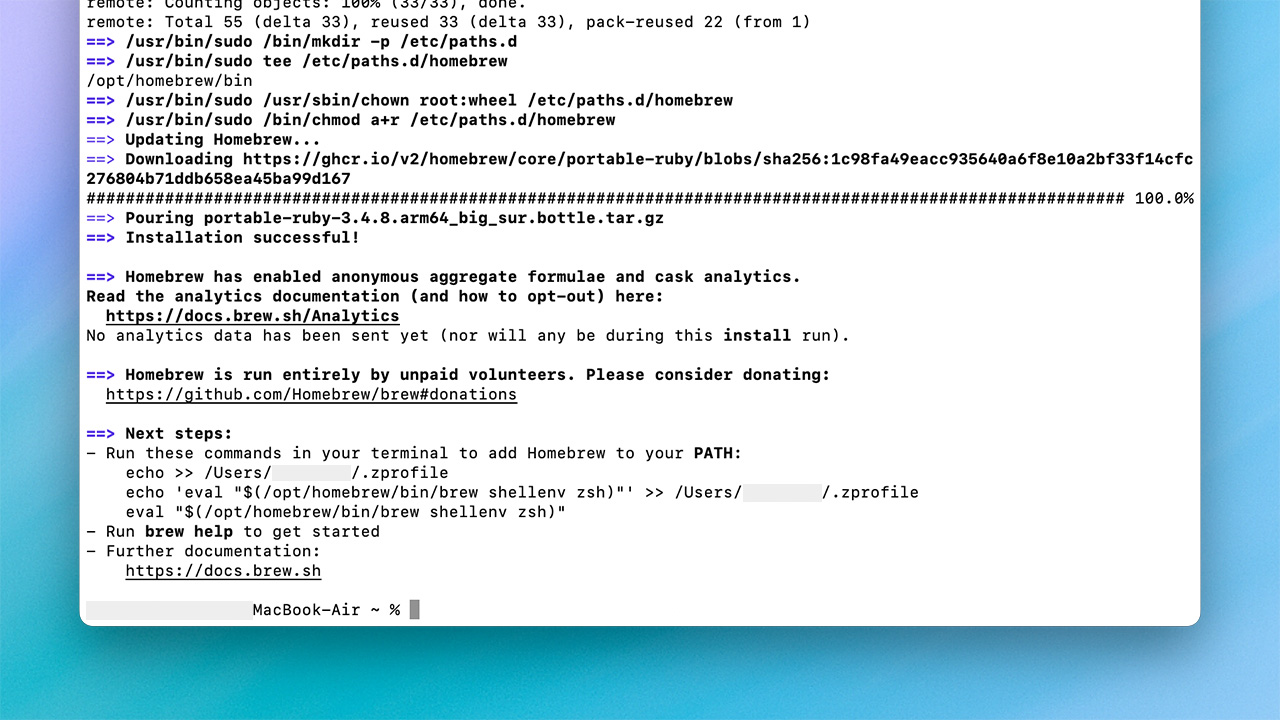
Load the environment variables when finished:
echo ‘eval “$(/opt/homebrew/bin/brew shellenv)”‘ >> ~/.zprofile eval “ $(/opt/homebrew/bin/brew shellenv)”
The purpose of this step is to add the Homebrew installation directory to the system's PATH environment variable so that macOS terminals can properly recognize and execute the brew command. Without this setting, the system will not be able to use the brew command directly, even if Homebrew is successfully installed.
Why start with Homebrew?
Homebrew is the most stable and widely used package management tool on macOS. Using it to install Node.js ensures version consistency, complete handling of dependencies, and avoids common permissions issues or PATH misconfigurations.
For subsequent deployments, Homebrew can be considered as the infrastructure of the whole system. Only with a solid foundation can the agents and models built later maintain long-term stability.
Step 2: Install Node.js
OpenClaw is built on Node.js, so you must configure your Node.js environment first. It is recommended to use version 22 or above.
It is recommended to install directly with Homebrew:
brew install node
The latest version of OpenClaw uses a newer Node.js API and module management. If the Node.js version is too old, it is likely that the module will fail to load or the service will not start properly. This step is not just about installing Node.js, but also about making sure that the entire environment meets the current official standards and compatibility requirements.
Step 3: Install OpenClaw
Once you have your Node.js environment in place, you can start installing OpenClaw itself.
The official CLI installation method is recommended:
curl -fsSL https://openclaw.ai/install.sh | bash

Why is the CLI preferred over the GUI version installed via Homebrew?
The CLI version represents the core implementation of OpenClaw, with a clean, well-defined architecture and the easiest way to diagnose and fix problems when they occur. Some GUIs or packaged versions installed through Homebrew may cause duplicate runs of background services, leading to the following conditions:
- The Gateway service runs multiple times
- Inconsistent profile paths
- Port is occupied
From the system architecture point of view, CLI is the underlying core, and GUI is only the upper level interface. Mastering the core CLI first can make the whole system more stable and reliable.
Even with a CLI installation, the convenience of graphical operation is not lost as the Web Chat interface can ultimately be accessed through a browser for conversations and management.

Step 4: Link to ChatGPT Subscription and Select Codex Models
Once installed, OpenClaw needs to be connected to your ChatGPT account to actually call the model into action.
It is recommended that you use auth authentication instead of manually entering an API Key, which directly borrows your current ChatGPT account's subscription rights and the various models available under that subscription.
If you choose a service such as OpenAI or Google, the terminal will prompt you for an API key. You will need to go to your platform's website to register for the key. This step varies by model, so if you're not sure how to find your API key, ask your AI for assistance.
In the interactive setup process shown below, select in order:
- AI providers (e.g. OpenAI)
- Authentication by auth
- Select an available Codex model, such as openai-codex/gpt-5.3-codex.
- Select the platform you want to interact with, either Telegram or others.

The ChatGPT Plus subscription is approximately $20 per month. With an auth link, OpenClaw can directly utilize the model permissions under the subscription, including the Codex family of models.
For day-to-day program development, command generation, and automation tasks, Plus subscription quotas are often sufficient for general personal use without the need to handle API billing or monitor token consumption. It's ideal for personal developers or advanced users who want a simple, cost-effective solution.
After this step, OpenClaw will officially use your ChatGPT subscription as the backend model source. To check your model usage and remaining quota, you can go to https://chatgpt.com/codex/settings/usage View current records and statistics.
At this point, if you have selected Telegram, you should be asked to enter the Telegram bot token. remember to enter it in the "Telegram bot token" field.Prior Preparation"Is this part of the bot token already prepared? Just copy and paste it!

The next step is to set up hooks: Hooks are systems that create automated operations in response to commands and events.
- boot-md: used to run specific tasks every time OpenClaw starts.
- bootstrap-extra-files: for injecting extra workspaces bootstrap File.
- command-logger: Used to keep a log of all command events, suitable for debugging.
- session-memory: This allows your agent to retain context and "remember" your previous conversations.
Step 5: Activate Gateway service and open Telegram interface
Try to talk to your bot in Telegram, if it replies normally, it means the local Proxy mode is successful!
Start installing Route 2:VPS Cloud Mode (24/7 Always On)
If you choose to use another cloud VPS solution instead of a local proxy, it means that you have decided to make this AI proxy a "permanently online system" rather than just a tool that works when the computer is turned on.
The greatest value of cloud deployments is stability and continuity. No matter where you are or whether you turn off your computer, the agent can run 24 hours a day and continue to receive commands, process tasks, and maintain memory. However, VPS setup involves steps such as system environment, SSH connection, service startup and background guarding, etc. If it is fully explained in text, it is relatively costly for first-time server users to understand.
So let's go straight to the video below for a real-world walkthrough of the process. The video demonstrates how to set up Ubuntu hosting on AWS, install OpenClaw, and set up Telegram Bot!
Important Safety Tips for Installing OpenClaw
1. Do not expose it to the open Internet.
If strangers have access to your OpenClaw control panel, they may try to hack it. It is recommended that you bind to "localhost" and use SSH tunneling (i.e. sending traffic over an encrypted connection).
2. Use of high-strength codes/scepters
Avoid using simple wands such as "abc" or "123" OpenClaw does not currently enforce password complexity, which means that it will simply accept a single letter (e.g. "a") as a valid security wand. You must manually ensure that the scepter is long enough and secure enough to prevent brute force attacks.
3. Protect your API keys
If you connect OpenClaw to an AI model or cryptocurrency tool, you must store these keys securely. Do not paste keys into random scripts or untrusted skills. OpenClaw stores its API keys, OAuth rights, and robot credentials in text-only profiles. Information-stealing malware has been updated to actively lock and collect these specific files.
4. Careful use of third-party skills
Treat skills as software downloads, some of which may be a security risk. Please review the code or use a trusted source. The ClawHub Skills Marketplace may contain malicious loads, including malware and credential-stealing programs. Completely ban unvetted skills and use tools such as Cisco's open source Skill Scanner to vet any new skills before installing.
5. Use of stand-alone machines or sandboxes wherever possible
If you need to test it, it is safer to make it run in a VM, Docker container, or a spare computer that does not contain sensitive data.
6. Immediate remediation of critical vulnerabilities
Please ensure that your version of OpenClaw has been updated to versions later than 2026.1.29. Older versions have a critical vulnerability (CVE-2026-25253) that allows an attacker to gain full remote control of your machine in milliseconds by simply tricking an AI into visiting a malicious web page.
7. Alert injection
If OpenClaw reads emails, Google Docs, Slack messages, or web pages that contain hidden malicious commands, these commands may hijack the behavior of the agent, leaking data or executing arbitrary commands without your knowledge. Do not allow agents to process untrusted content.
8. Perform periodic security audits
OpenClaw includes built-in security tools. Periodically, run the command "openclaw security audit" on your terminal to check for gateway exposure and privilege issues. You can also use the "-fix" flag to attempt to automatically fix identified misconfigurations.
What are some common problems with installation?
In the process of setting up OpenClaw, the most common problems encountered by newbies are actually similar, and many of them are caused by the system environment, setup sequence, or software compatibility. Below is a list of the five most common problems, as well as the feelings and solutions when they occur, so that you will realize that everyone encounters these problems.
Problem 1: The terminal suddenly displays "openclaw: command not found".
After the first installation, a lot of people are excited to call openclaw -version When I test it and the system says "command not found", I really feel like "I just installed it, didn't I? How could this happen?
This is actually because the path to the npm global installation directive is not automatically added to the PATH. This is especially common on macOS or Ubuntu after installing Node.js using nvm or Homebrew.
Solution:
Just add the npm global bin directory to the PATH. In practice, you'll realize that it's just a bad path. Type the following two lines in the terminal (zsh for Mac, bash for Ubuntu):
export PATH=”$HOME/.npm-global/bin:$PATH”
echo ‘export PATH=”$HOME/.npm-global/bin:$PATH”‘ >> ~/.bashrc # Ubuntu
Type it in, then type it in again. openclaw -version You should see the version number. Many people get stuck at this step for 10 minutes, but once they realize it's a PATH problem, they fix it right away!
Problem 2: Gateway failed to start, showing "service not loaded" or "not found".
This is the most common pain point for Mac and Linux. After installing and typing openclaw gateway restart, you will get "Gateway service not loaded" or "Unit not found", which makes you feel that the whole service is installed but not yet installed.
The reason is usually that LaunchAgent (Mac) or systemd (Linux) is not properly registered, or that a previous installation was interrupted resulting in a file being left behind.
Solution: Force clean the old service first, then reinstall it.
Take MacOS for example:
openclaw gateway stop
openclaw gateway install
openclaw gateway -daemon
After running status, if you see the word "status,"Active: active (running)"If the service is running normally in the background, it means that the service is running normally in the background. If you go back to Telegram and test it again, it will usually be back to normal.
Problem 3: Typing to the bot on my cell phone does not respond at all, but it looks fine on my computer.
This was the most devastating moment for many people after moving to a VPS: they could still reply on their Macs, but they couldn't receive any AI Agent replies when they chatted on their cell phones.
The reason is almost always "two OpenClaws grabbing the same Telegram bot token at the same time".
Telegram's getUpdates mechanism only allows one connection to exist at a time, which can lead to conflicts if the service is not completely shut down on the Mac!
Solution: Completely disable all OpenClaw processes on your Mac:
openclaw gateway install
pkill-f openclaw
Go back to AWS to confirm:
restart openclaw-gateway.service
status openclaw-gateway.service
Close the terminal window on your Mac or just shut down the computer and retest with your cell phone. If it responds, the cloud has taken over completely!
Conclusion
When the Bot is able to respond consistently, memorize conversations, and support model switching and skill expansion, the system has been successfully built.
There are various setbacks in the process, but each time you solve one, your understanding of the whole system gets deeper!
In the future, you can continue to expand: install more Skills (e.g. Gmail, Google Calendar, GitHub actions) set up multiple agent levels (CEO Agent → Manager Agent → Worker Agent), and even customize SKILL.md to write your own proprietary features.
Remember: OpenClaw is not a finished product, but a framework that can grow indefinitely. You've already crossed the hardest barrier to entry, and all that's left is to keep optimizing and using it!
Our Telegram Community There are members every day.We share practical experience, common pit solutions and the latest optimization techniques to help you tune your lobster to the most suitable state for you faster. Join us now for free and we'll help you make your AI agent game deeper and stronger!
Recent Recent Posts:
2026 Latest 6 Free Coin Ring Tools Inventory|Where to find the data on the chain?
2025 Latest OKX Web3 Wallet Tutorial: Does it work? How to create it? A Guide to Safe Operation, Multi-Link Support, and Time-Limited Airdrops
2026 Latest Polymarket Tutorial|How to find out the insiders and realize the high win rate!
2025 New DeFi Beginner's Guide|Teaching you to earn stable money passive income! Introducing 3 popular programs, DeFiLlama tool tutorial!
Disclaimer
The content of this article is for reference only, investors should exercise independent judgment, invest prudently and at their own risk, this article does not provide or attempt to persuade the audience to do trading or investment basis, the content is for sharing purposes only, and should not be regarded as investment advice.It does not represent the views and position of Monsterblockhk.All information and opinions are current as of the date of the judgment. In addition, if a judgment is rendered on aIn this siteAny content related to virtual asset trading platforms that have not yet obtained a license to operate virtual asset trading platforms in Hong Kong, including but not limited to text introductions, pictures, offers, events, etc., are only available to users outside the Hong Kong Special Administrative Region.
According to the Hong Kong Anti-Money Laundering and Counter-Terrorist Financing (Amendment) Ordinance 2022, after June 1, 2023, all centralized virtual asset trading platforms operating in Hong Kong or actively promoting their services to Hong Kong investors will be licensed and regulated by the SFC, and any related unlicensed activities will be a criminal offence. For more information and details of the legislation, users may refer to the SFC website.